Pages

Friday, 17 November 2023

Create a bootable USB flash drive

Step: 2 :Click Create and format hard disk partitions

Step: 3 : Right Click Pendrive and click format 


Step: 4 :Select /FAT32 /Default then click ok

Step: 6:click ok
Step: 5 :Right Click and Delete Volume
Step: 6 :Click YES

Step: 7 :Right Click and select New Simple Volume
Step: 8 :Click Next
Step: 9:Enter the Volume 1000
Step: 10:Click the Next
Step: 11 :Click the Next
Step: 12 :update details FAT32 / Default / Boot  then click Next
Step: 13 :then click Finish 
Step: 14 :Now Boot Partition Created
Step: 15 :Right click in unallocated and click New Simple Volume
Step: 16:Click Next
Step: 17 :Click Next
Step: 18:Click Next
Step: 19 :Select and Enter the Details NTFS/Default/Image then click Next
Step: 20 :Processing.....
Step: 21 :Click Close.....
Step: 22:Image Partition Now Created.....


Step: 23 :Download files from 57 server and keep it in system

Step: 24 :Copy the Boot files from system

Step: 25 :Select Boot Partition in Pendrive


Step: 26 :Paste Boot Files in to Pendrive Boot Partition
Step: 27:Copy the image file from system

Step: 28 :Select Image Partion in Pendrive

Step: 29 :Paste the file in Bootable Pendrive Image partition


Final : After Copy Completed Your Pendrive Ready to Bootable pendrive

Saturday, 28 October 2023

NEW OS INSTALLATION STEPS

Step:1- Insert OS Bootable Pendrive, Power On your Computer, then Press F12


Step:2- Select USB then Enter


Step:3- Select Restore

Step:4- Select Automatic

Step:5- Select File (Direct)

Step:6- Select Physical Drive

Step:7- Select Hard Drive 0 - USB

Step:8- Select Image

Step:9- Select CCTNS-SERVER FINAL IMAGE-TBI then select Next>>

Step:10- Select all tic and then select Next>>


Step:11- Select Yes>


 Step:12- Select Start

 The progress starting..... 

 Step:13- Click OK

Final Step: Click Exit


Thursday, 19 October 2023

gscan2pdf


 now open a new terminal (CTRL+ALT+T)

sudo apt-get update

sudo apt-get install gscan2pdf


Wednesday, 22 February 2023

WEB VPN

 Step:1- 

            உங்களுடைய காவல் நிலைய CCTNS Mail ல் WebVPN Mail வந்திருப்பின் அந்த Mail ID யே Webvpn  ன் User Name ஆகும்.


 Step:2- 

           Mobile Number க்கு Password வந்திருப்பதை Note செய்து கொள்ளவும்.


 Step:3- 

           https://saccess.nic.in/ என்ற url க்கு சென்று மேற்கண்ட User Name மற்றும் Password யை Enter செய்யவும்.


 Step:4- 

          OTP Enter செய்து Sign in செய்து காெள்ளவும்.


 Step:5- 

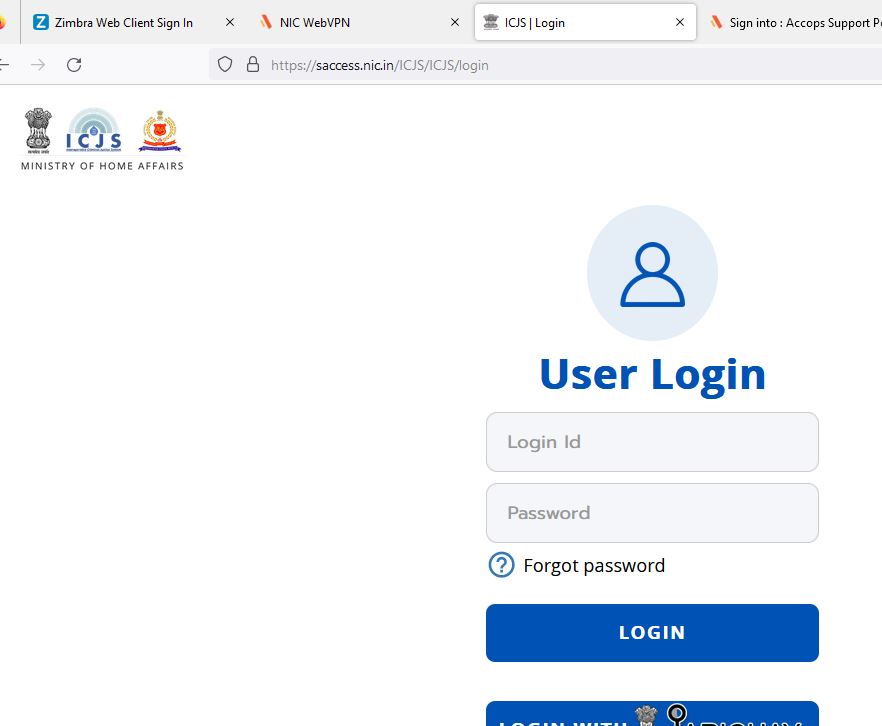
          Click the ICJS.


 Step:5- 

          Now the ICJS open in Broadband.


https://saccess.nic.in/

CCTNS
https://cctns.saccess.nic.in/center/login.htm

CPP - Cyber Police Portal
https://cpp.saccess.nic.in/

CRIMAC - CRIME MULTI AGENCY CENTRE (Cri-MAC)
https://crimac.saccess.nic.in/crimac/login

ICJS - Interoperable Criminal Justice System
https://icjs.saccess.nic.in/ICJS/

ICJS_eSakshya 
https://icjsesakshya.saccess.nic.in/esakshya/

ICJS_eSakshya_UAT
https://icjsesakshyauat.saccess.nic.in/esakshyastaging/

ICJS_eSummons
https://icjsesummons.saccess.nic.in/esummons/

ICJS_Foreigners
https://icjsforeigners.saccess.nic.in/Foreigners/

ICJS_NIDAAN - National Integrated DAtabase on Arrested Narco Offenders
https://icjsnidaan.saccess.nic.in/NIDAAN/

ICJS_Trafficiking - National Database of Human Trafficking Offenders
https://icjstrafficiking.saccess.nic.in/Trafficking/

IMOT - Integrated Monitoring of Terrorism
https://imot.saccess.nic.in/IMOT/

ITSSO- ITSSO Investigation Tracking System For Sexual Offences
https://itsso.saccess.nic.in/ITSSO/

NDSO - National Database on Sexual Offenders
https://ndso.saccess.nic.in/NDSO/

POCSO
https://pocso.saccess.nic.in/ICJS/

WebVPN_Test